Send to Bounds
Save a web article, then read it in Bounds at the speed you choose.
By Bug City, the makers of Bounds. Updated .
Two ways to save an article
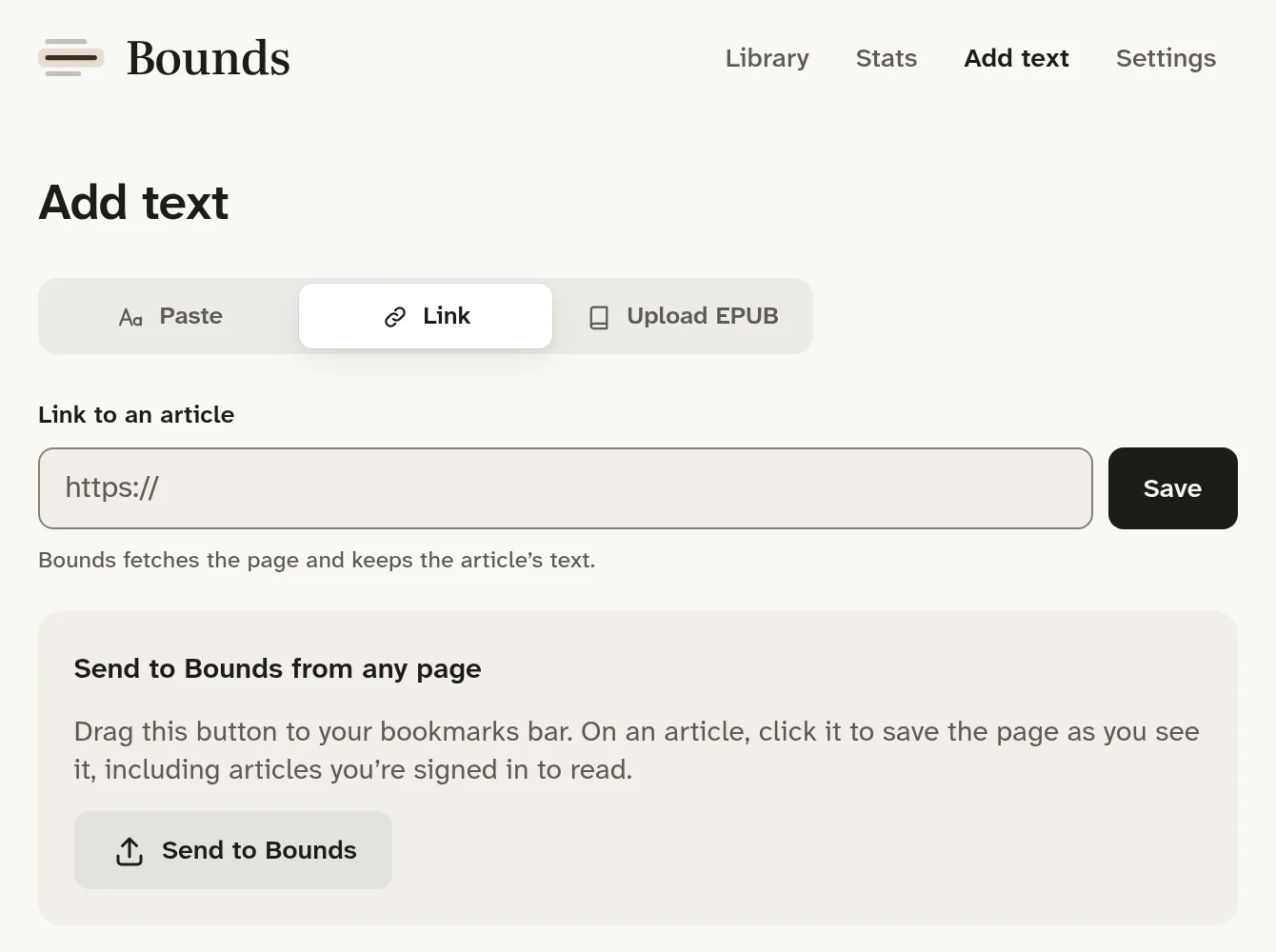
In Bounds, Add text › Link has both ways to save an article: a box for its link, and the Send to Bounds button.
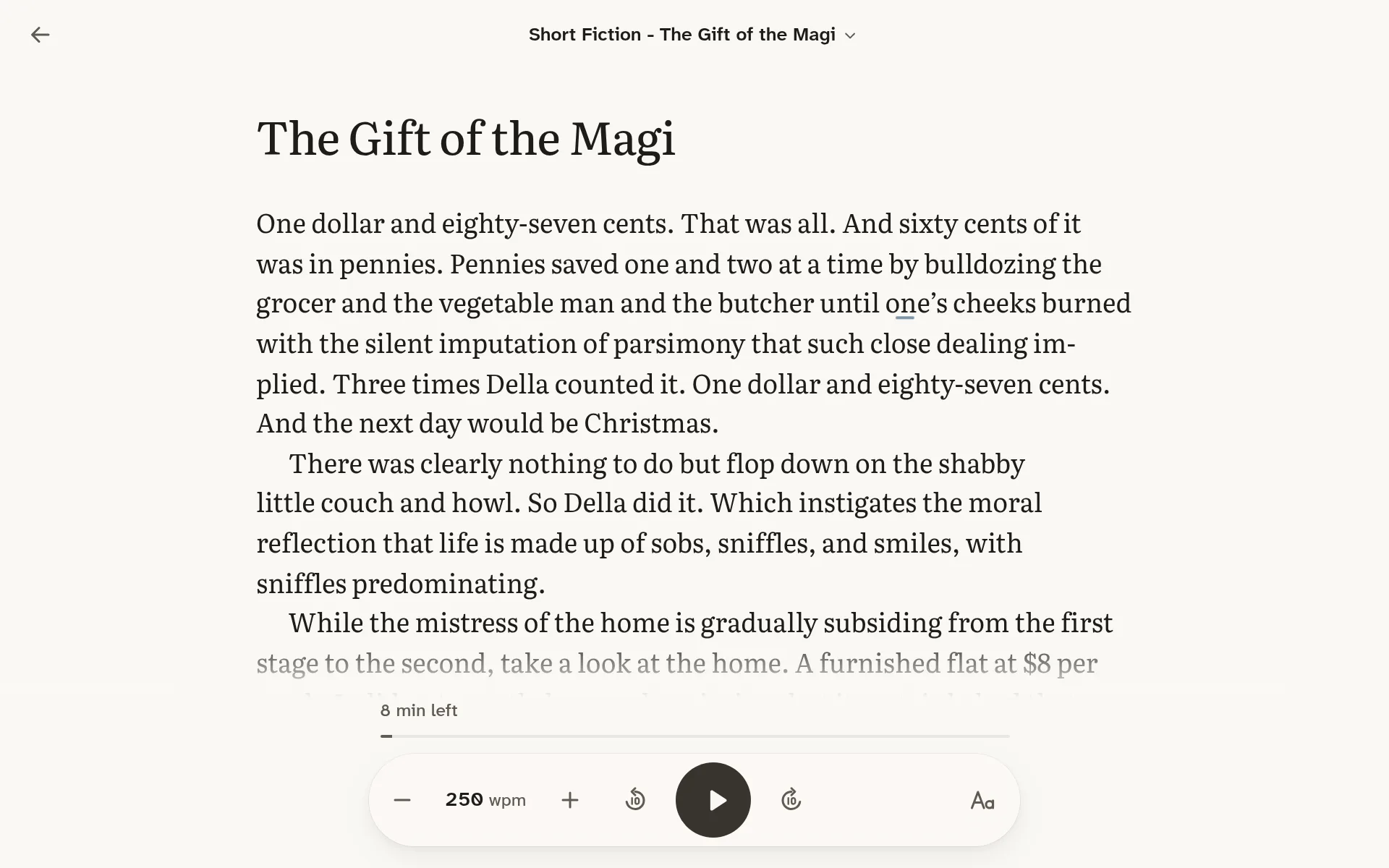
- By link. Paste an article’s link and press Save. Bounds fetches the page itself and keeps the article’s text, then opens it in the reader.
- With Send to Bounds. Send to Bounds is a bookmarklet, a bookmark that runs a small script. Drag the Send to Bounds button from Add text › Link to your browser’s bookmarks bar once.
Send to Bounds, step by step
- On an article, click it. A small Send to Bounds window opens and saves the page as your browser shows it, so articles you’re signed in to read come through too.
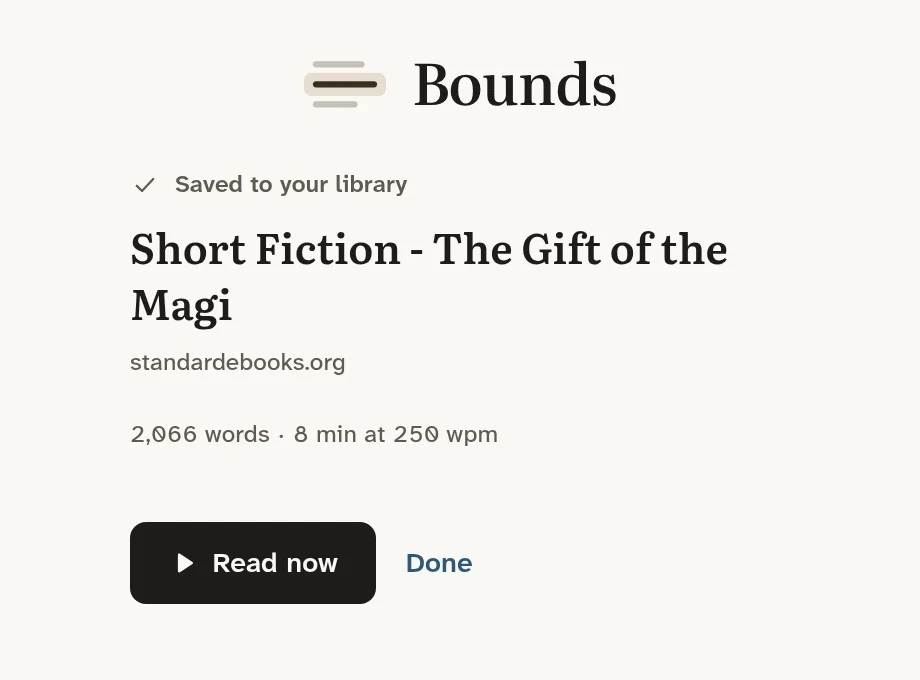
- The window then says “Saved to your library”, with the article’s title, author, word count and reading time at your speed, and a Read now button.
- If you aren’t signed in, the window asks you to sign in first, then saves the page.
- If your browser blocks the window, Send to Bounds asks you to allow pop-ups for that site.
- If the page doesn’t reach the window within about 2.5 seconds, Bounds fetches the link itself.
What Bounds keeps
- The article’s text, in its paragraphs and headings, with its title and its author (or the site’s name). Pictures and captions are left out, and footnotes come after the article, under Notes.
- One copy of each page. The link is saved without tracking parameters (such as utm_source), and saving the same page again opens the copy you already have.
- A saved article sits in your library with your books and pasted texts. Like them, it keeps its own speed and your place, and it’s listed in your stats.
What can’t be saved
- A page needs at least 150 words of article text. If only a preview comes through, as behind many paywalls, Bounds says so; open the article while signed in and use Send to Bounds, or paste the text.
- Some sites don’t let Bounds fetch their pages. Send to Bounds, or pasting the text, works instead.
- Pages over 5 MB, PDFs and links that aren’t web pages can’t be saved.
- Bounds doesn’t fetch pages from private or local network addresses.
Your privacy
Send to Bounds does nothing until you click it, and hands the page only to the Send to Bounds window on bounds.app. A saved article is private to your account, like everything in your library.
Who can use it
Saving articles needs an account, and accounts are invite-only for now. Without one, copy the article’s text and paste it on the front page.
How Bounds works shows the reader, its focus guides and your stats.